
Common Reasons to Change Your Google Password
- Received a security alert: Change your password to something unique and never previously used.
- Increase account security: Use a stronger, more complex password.
- Accidentally shared or someone else may know it: Passwords should not be shared.
Follow the steps below to update your Google password using your Kinkaid account.
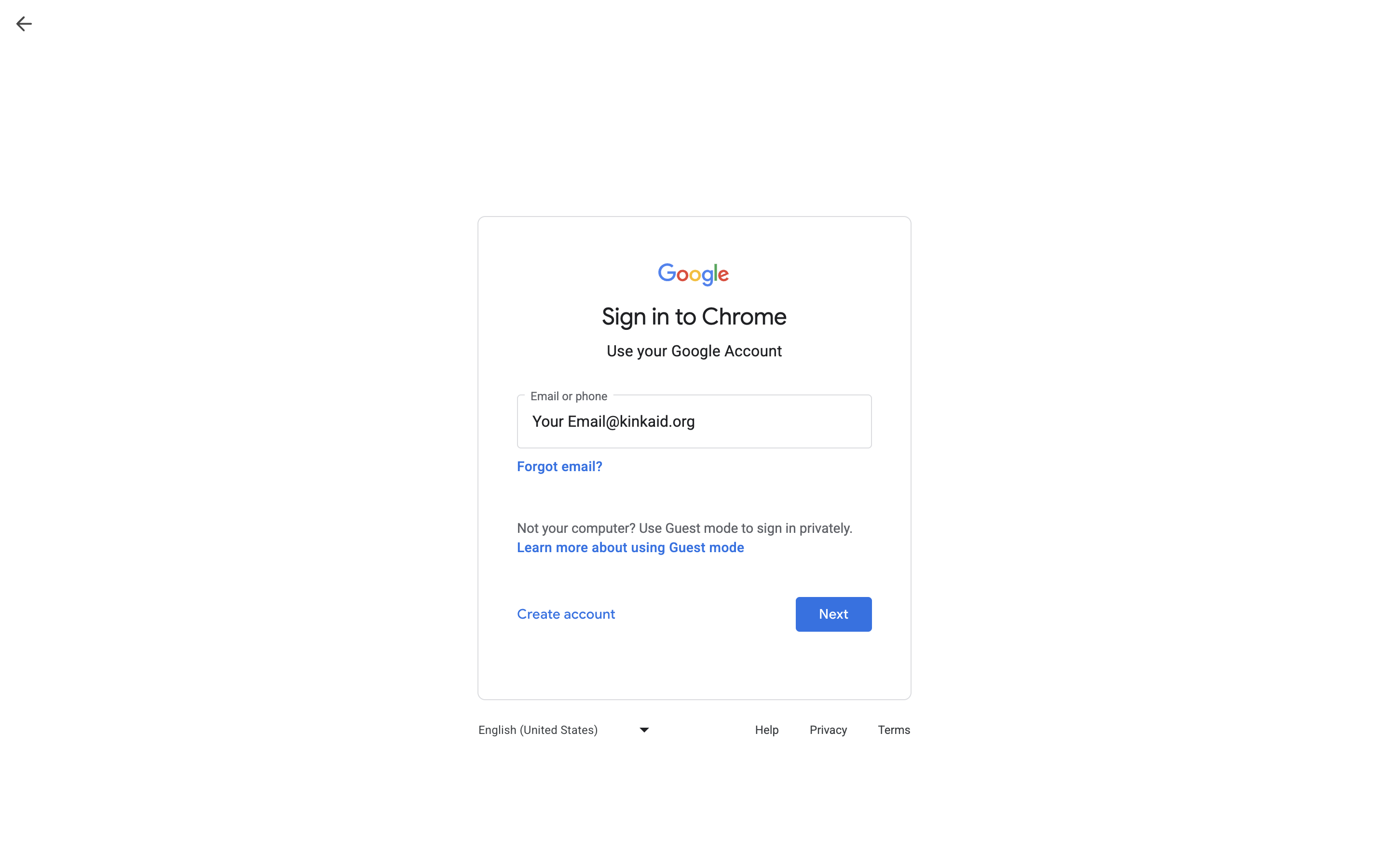
1. Sign In to your Gmail.
- If you are already signed in, skip to Step 3.

2. Enter your full email address.
- Be sure to include "@kinkaid.org" and select Next.
- Enter your current password on the next screen.
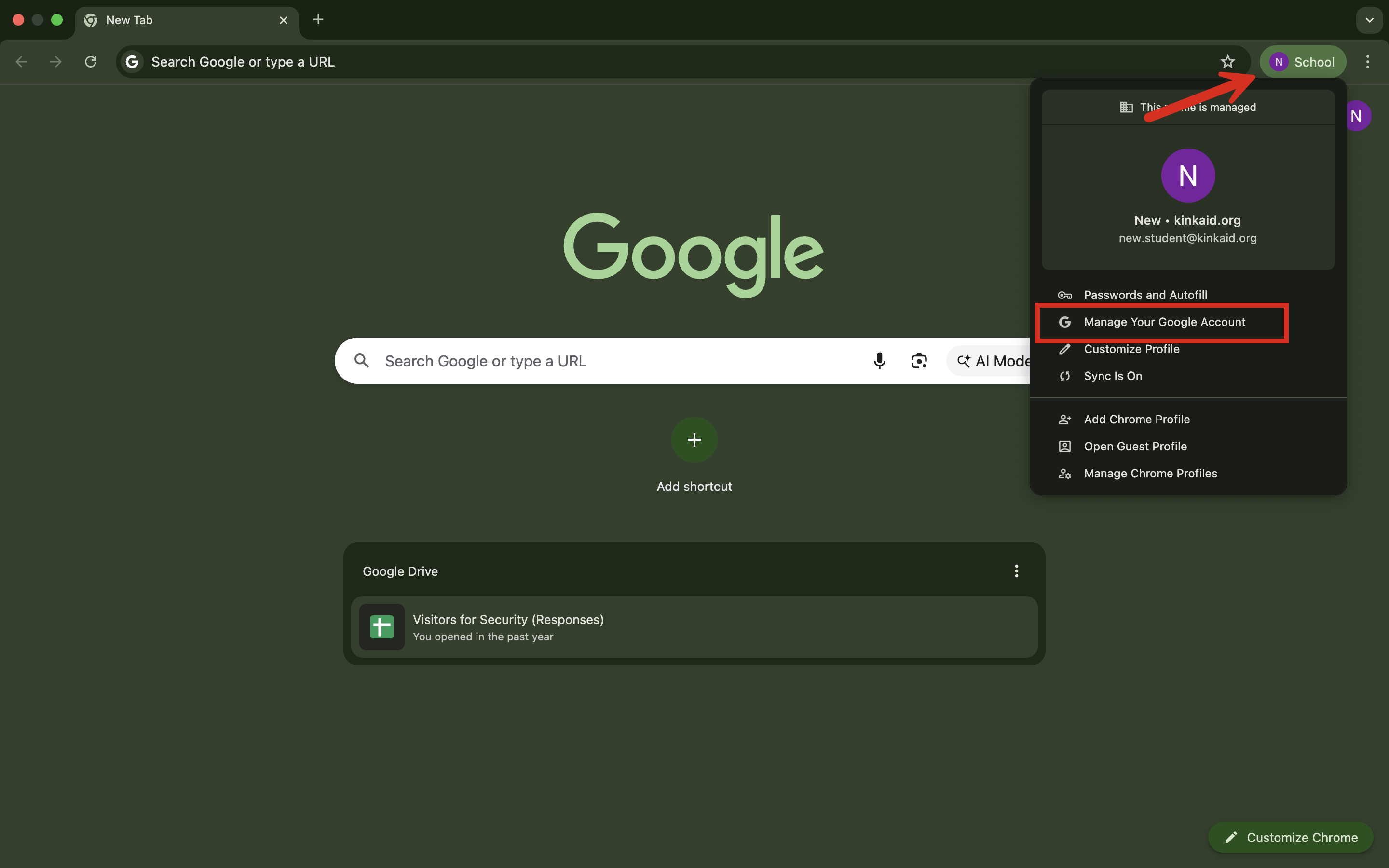
3. Select Manage Your Google Account.
- Click on your profile photo (may be your first initial if no profile photo).
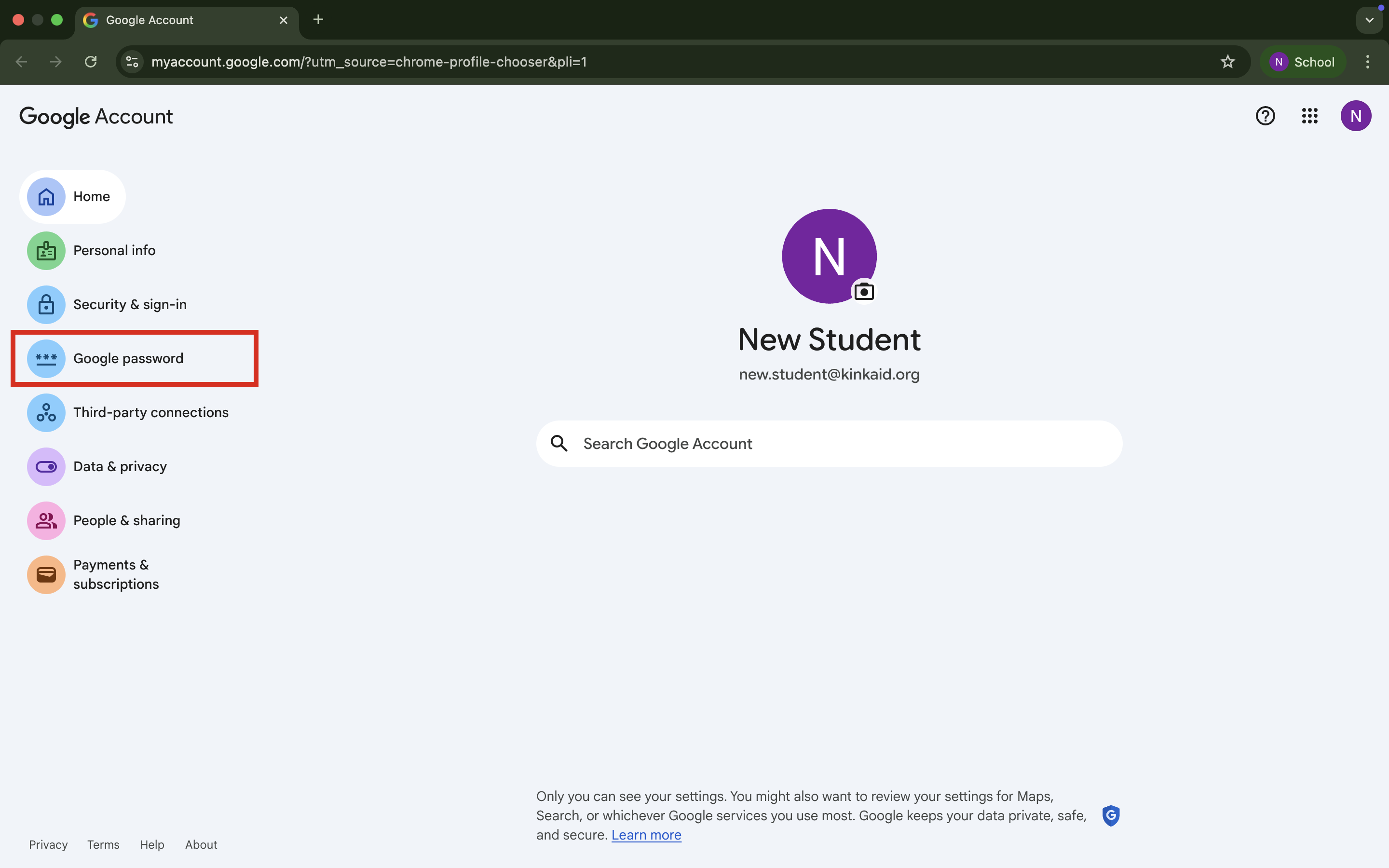
4. Select Google password.
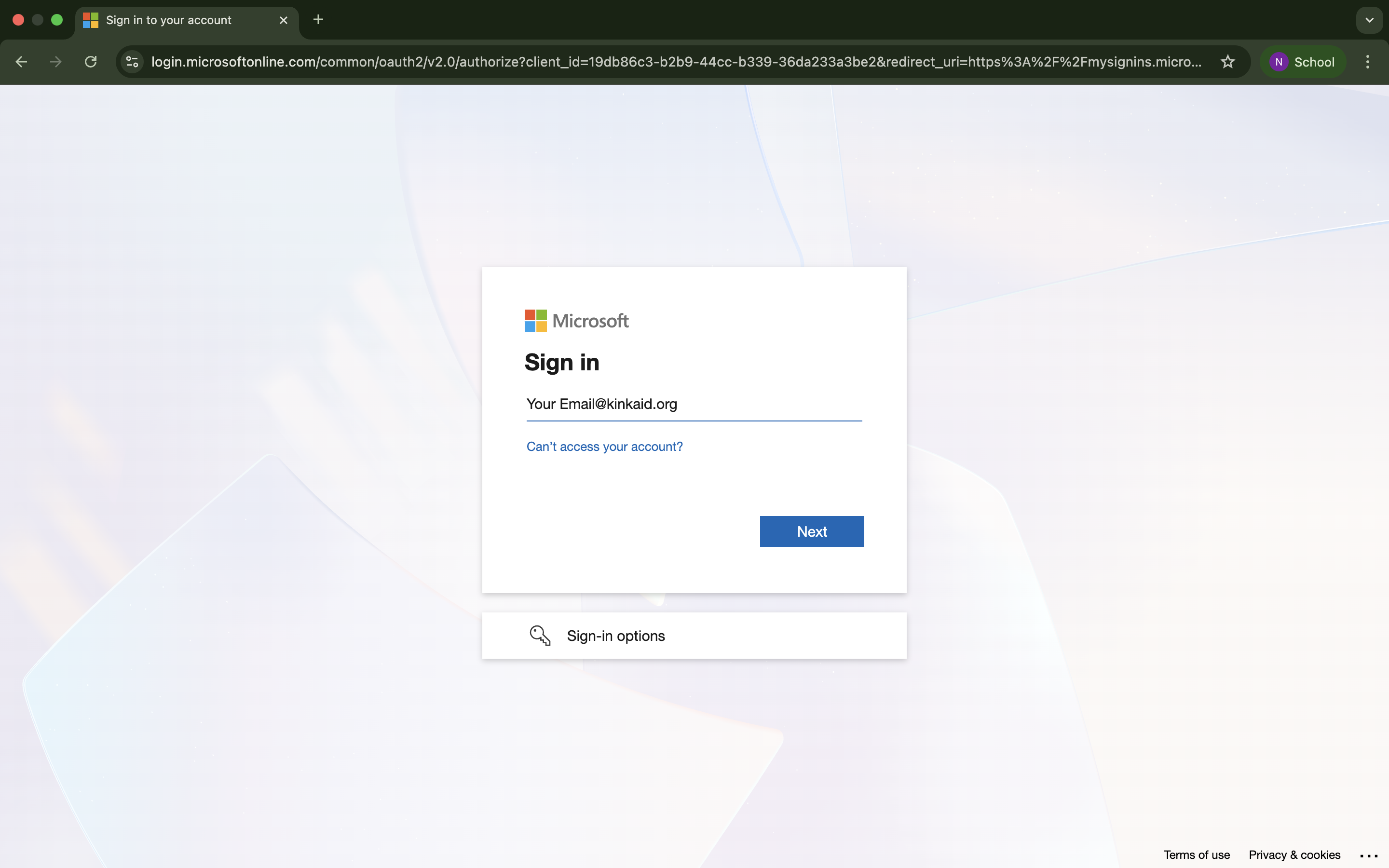
5. Enter your full email and your password, again on the Microsoft screen.
- If prompted with Stay signed in select Yes.
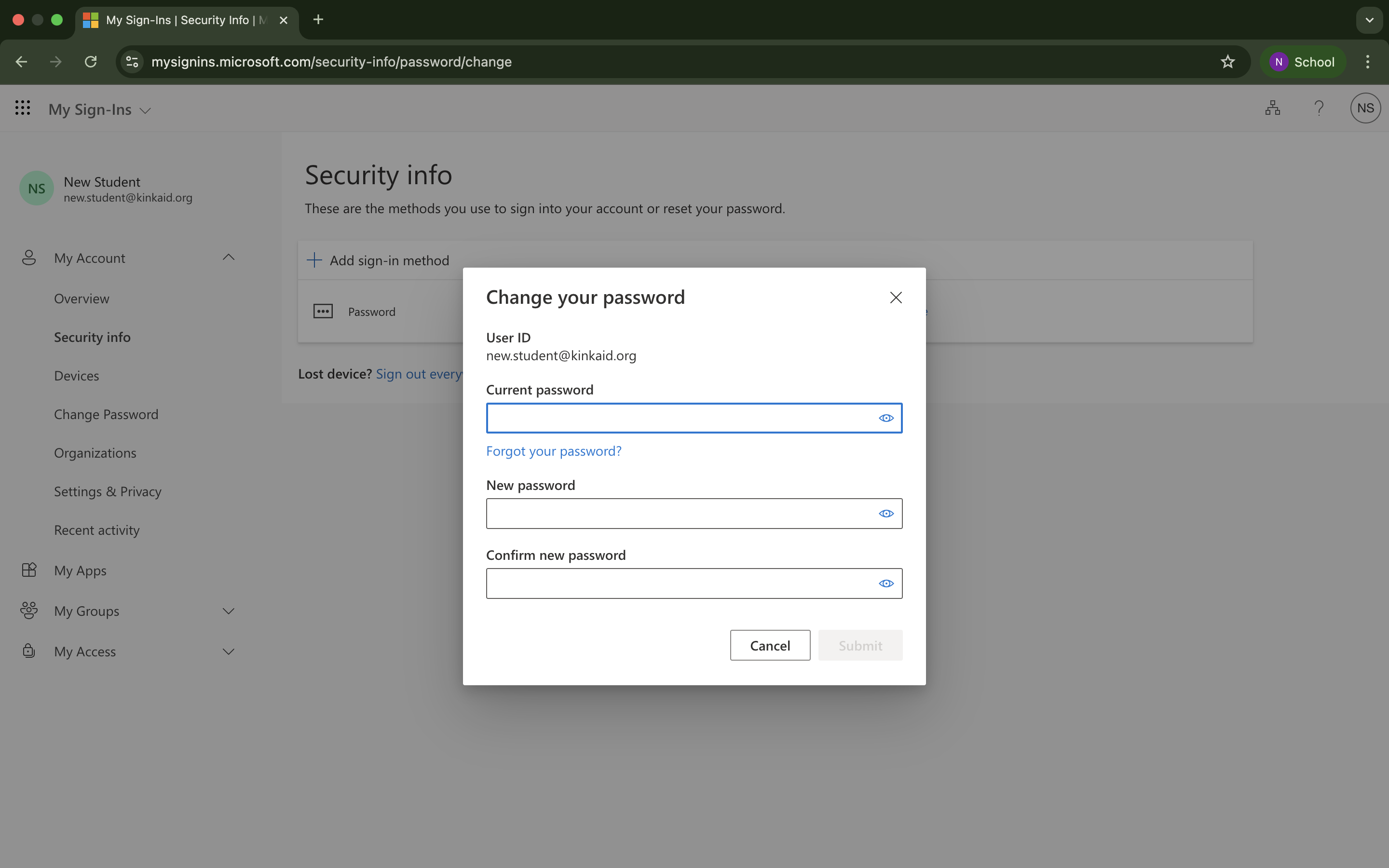
6. Enter your current and new password, and then select Submit when you have filled all fields.
Password requirements:
At least 10 characters
1 Uppercase letter
1 Lowercase letter
1 Number
1 Special character (anything not a letter or number, ie !@#$%^&*())
Still having issues? Please email us at helpdesk@kinkaid.org