
Common Reasons to Convert Files
Collaboration: Google Docs allows for real-time editing with teammates.
Accessibility: Access and edit your files from any device without needing Microsoft Word.
If you have multiple Word documents you want to change into Google Docs, follow the steps below to convert them all at once.
1. Enable Automatic Conversion
- Open Google Drive in your web browser.
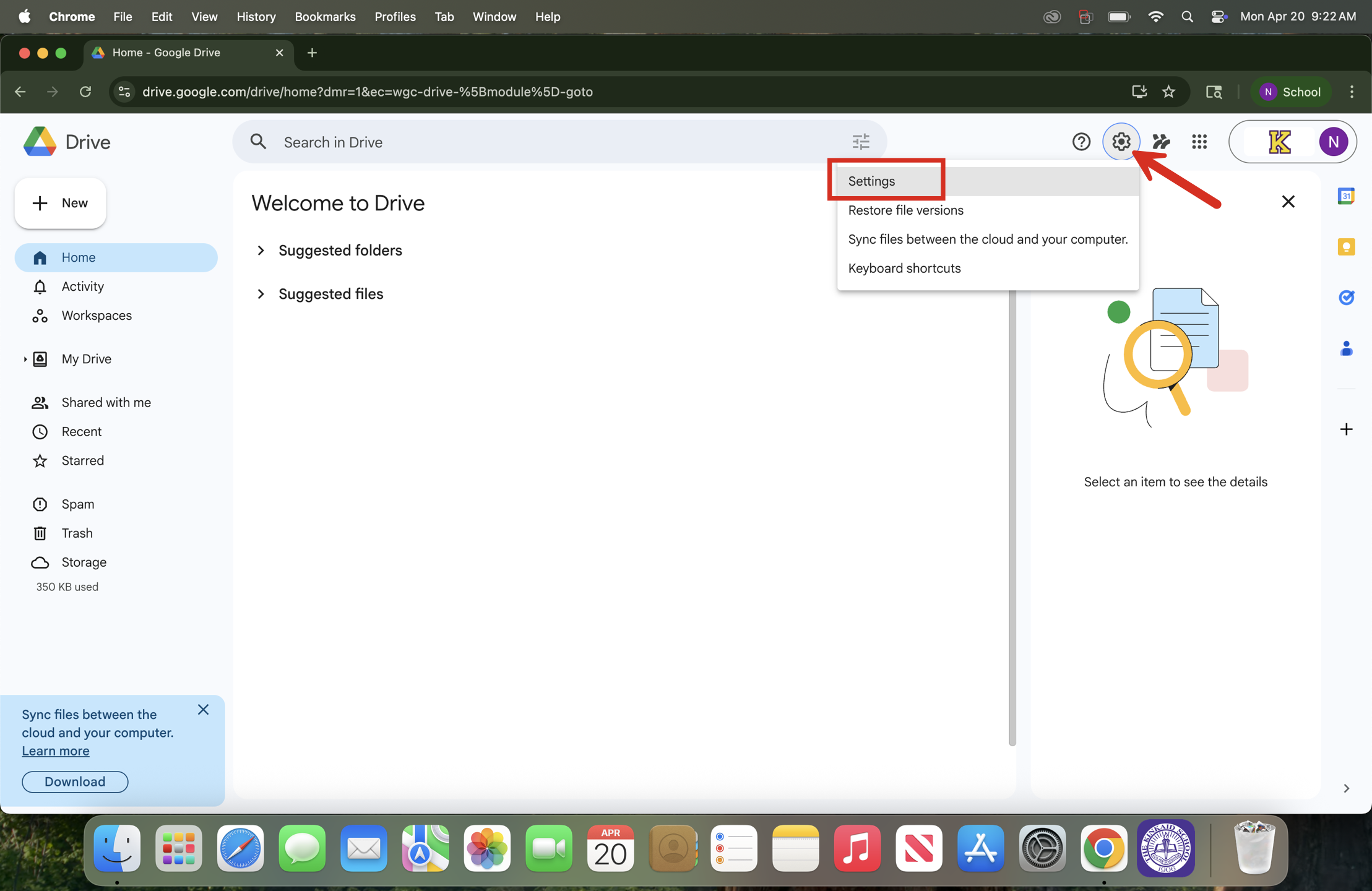
- Click the Settings icon (gear icon) in the top-right corner and select Settings.
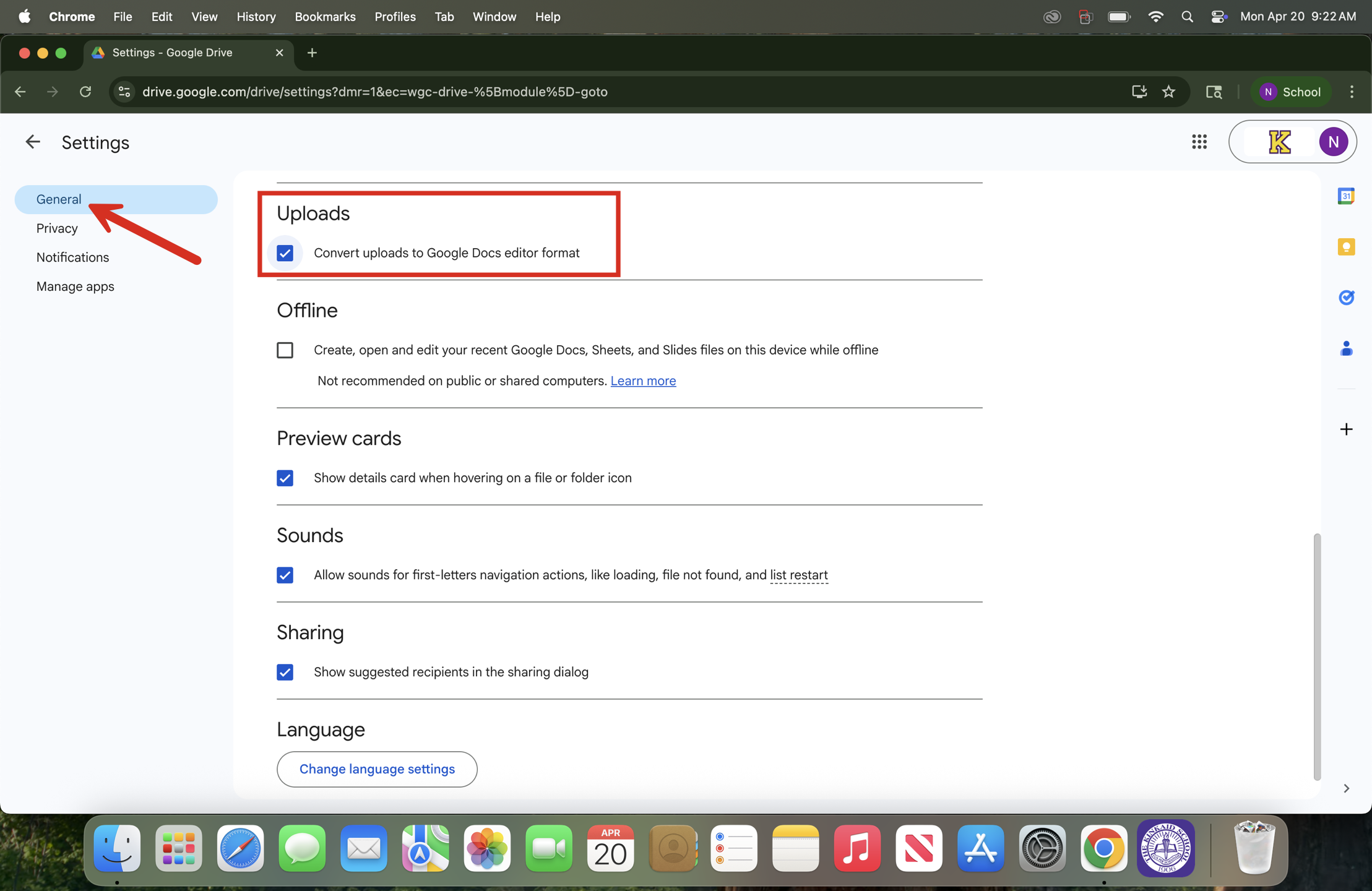
- In the General tab, scroll down and locate the Convert Uploads Section. Ensure its box is checked.
2. Download and Re-upload all of your Microsoft Word files.
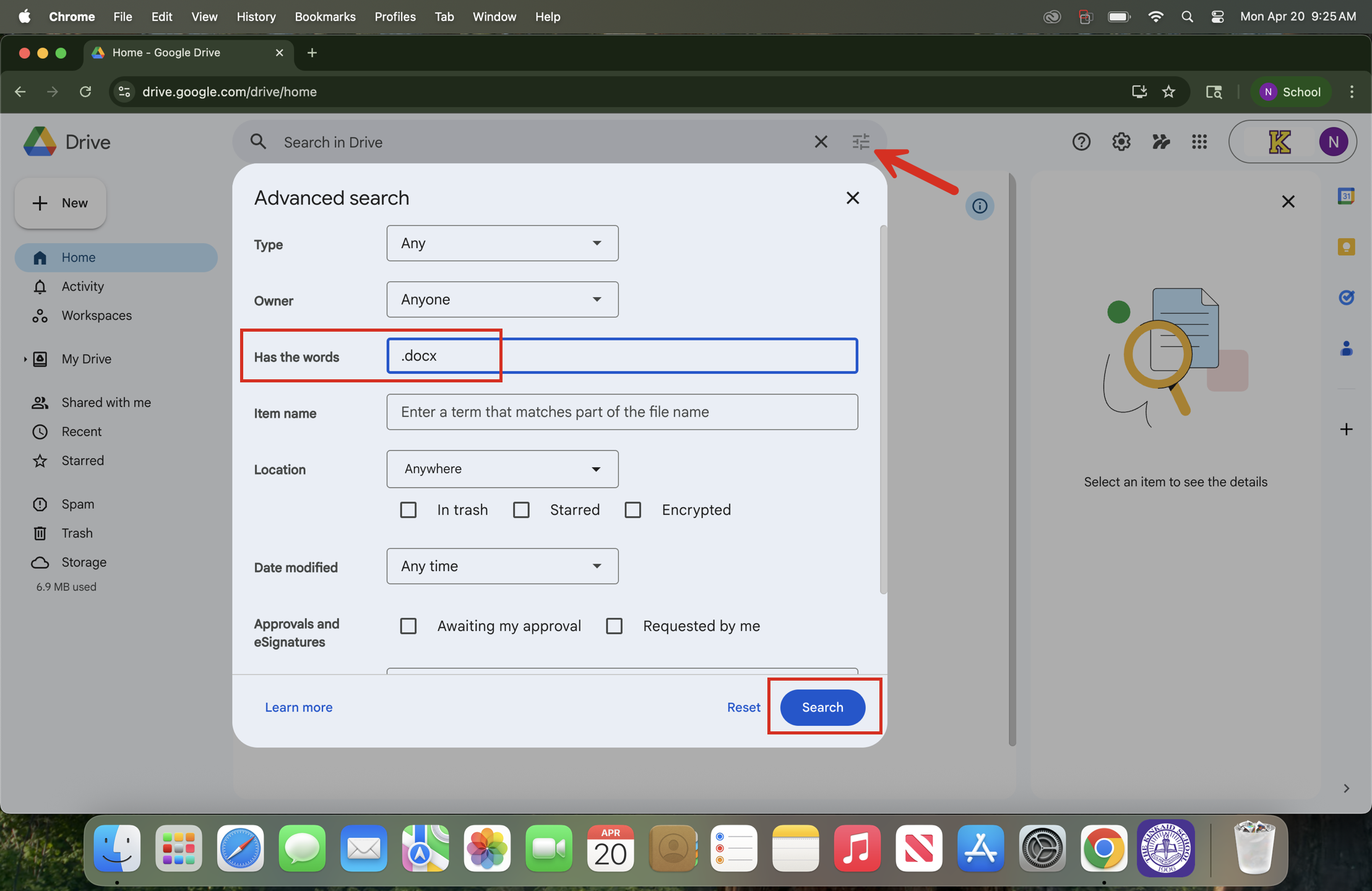
Search for all (or select) .docx files by using the Advanced Search feature.
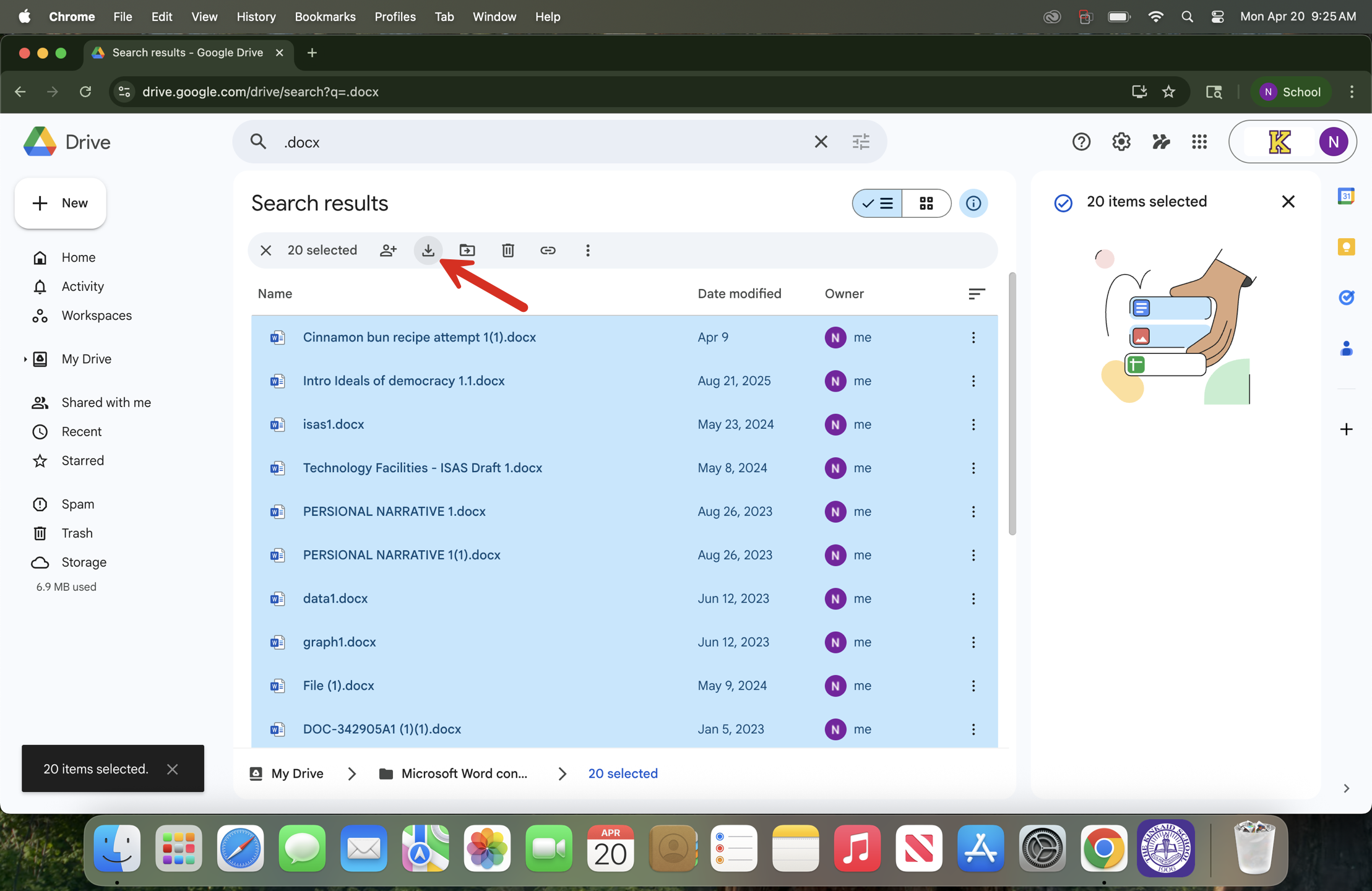
Download the respective files and then re-upload them back into Google Drive. They should now upload as a Google Doc file type.
Still having issues? Please email us at helpdesk@kinkaid.org