
Common Reasons Your Google Drive Items Are Not Being Seen
Document is restricted: Share the document with the shared recipients.
Notify the shared recipients: Re-share the file and check "notify people" is selected.
New limited access: Verify your items' access for restrictions and limited access.
If shared files are not being seen or restricted files are being seen, verify your access settings in your Google Drive by following the steps below.
1. Verify the appropriate parties have access to the file or folder.
- Optional: make any necessary changes to reflect who you want to have access.
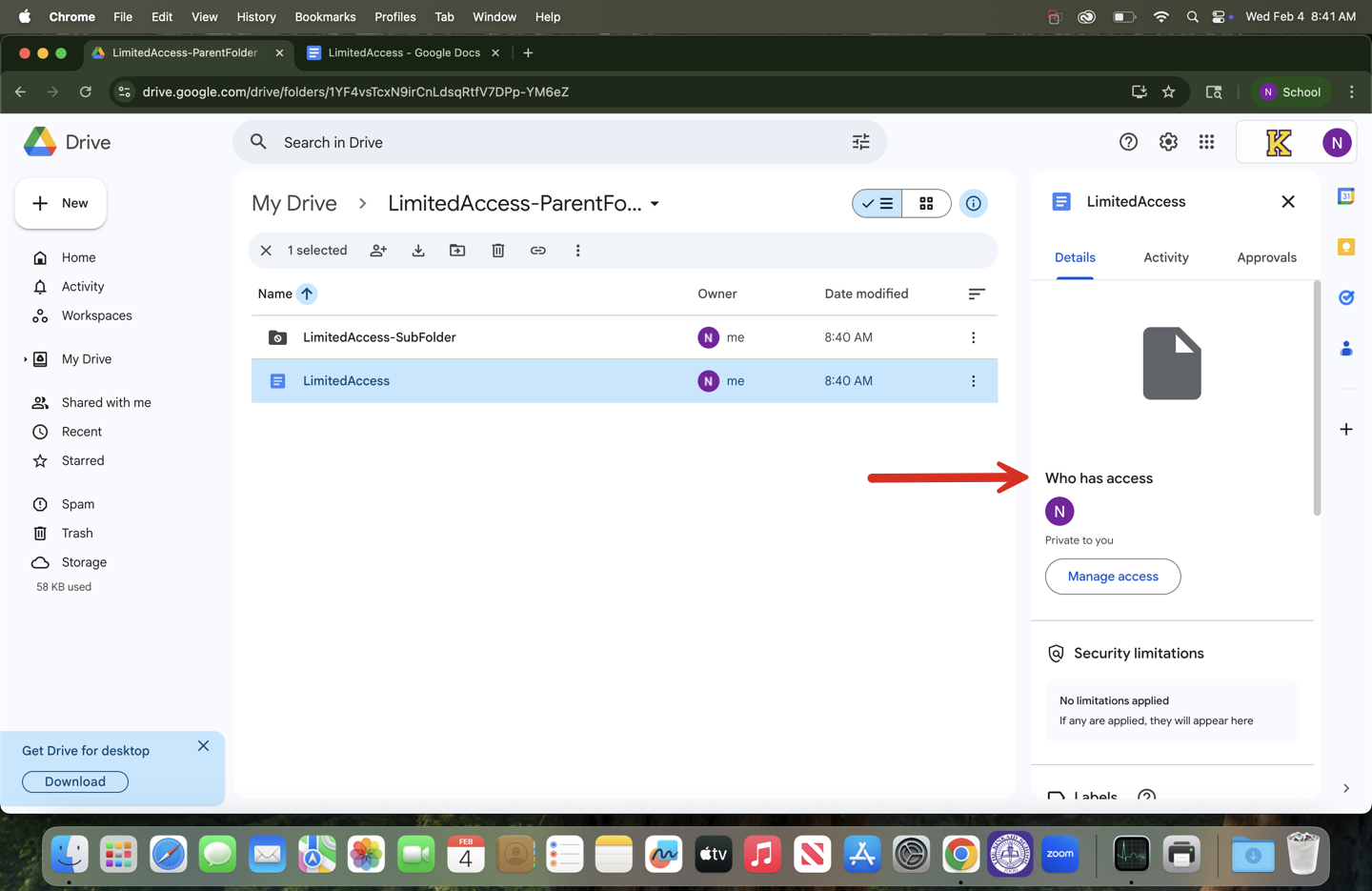
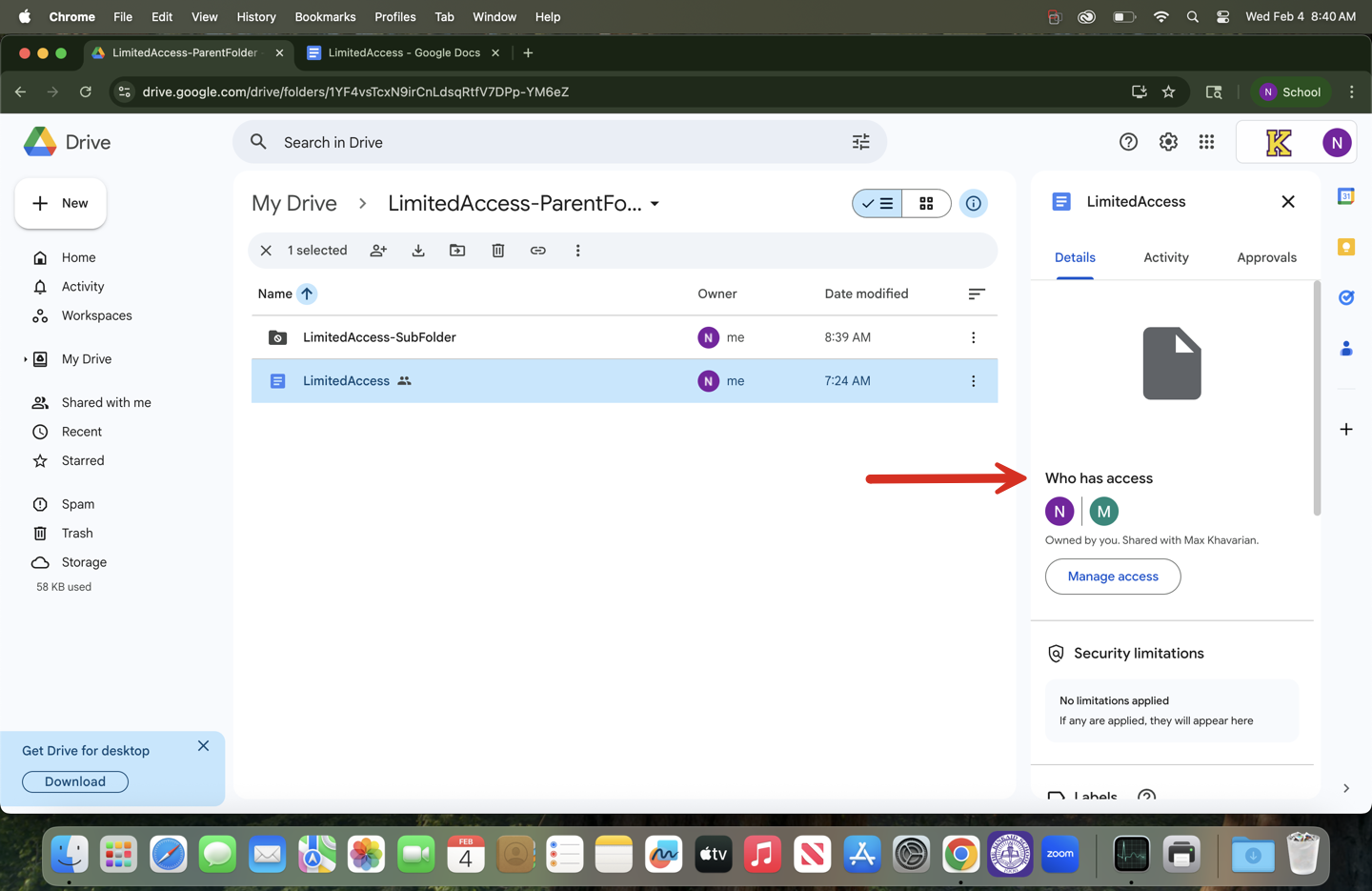
2. Creating or editing limited access to a folder.
Right-click the file or folder.
Click Share
 Share
Share  Settings
  .
.Turn on/off "Limit access to..."
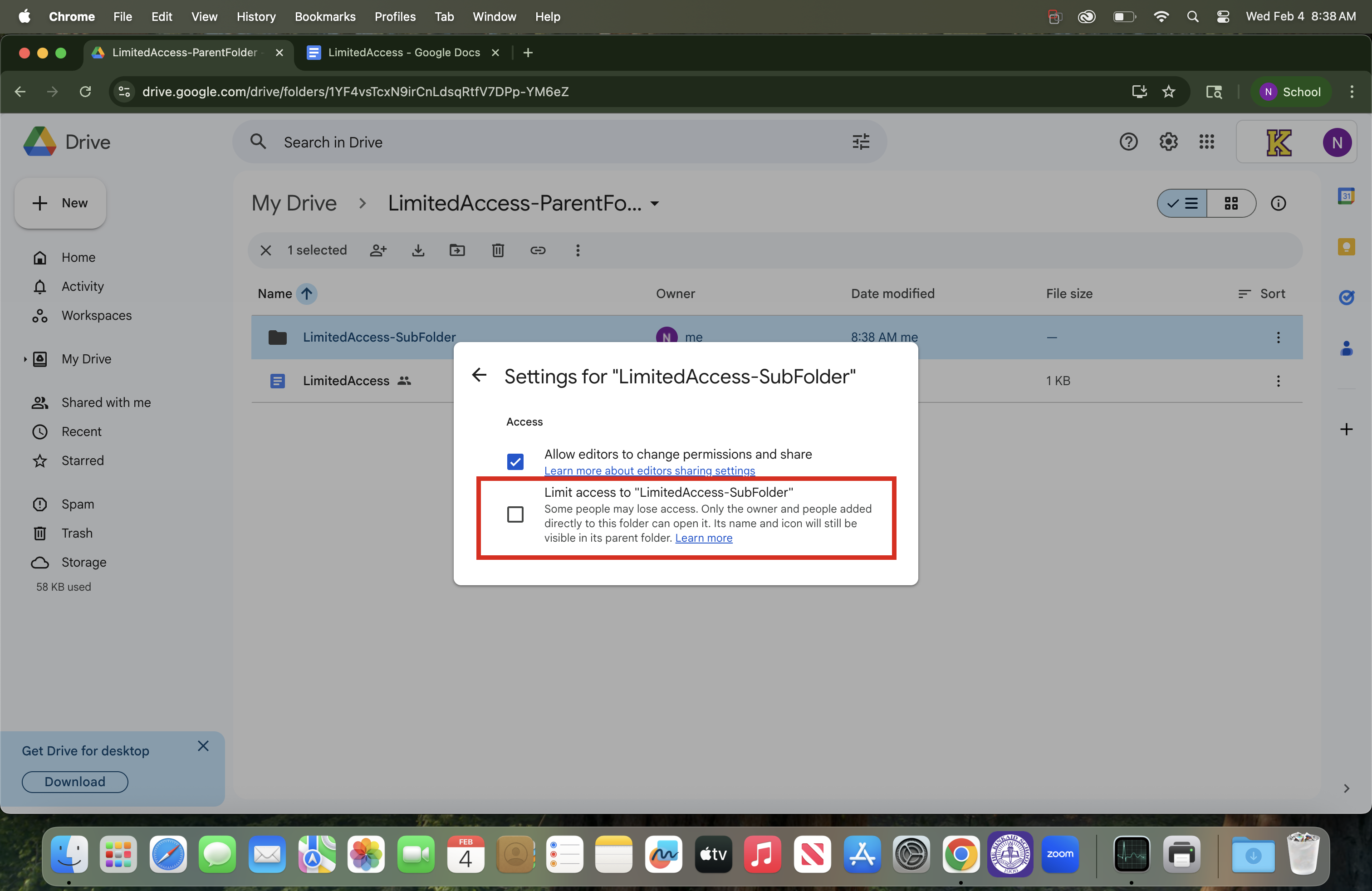
Important: The "People with access" list and "General access" settings always override the "Access removed" list. If someone is on the "Access removed" list, they can still open the file if they are part of a group with access or if the file has general access.
When you apply limited access to a folder, the sharing dialog may show an "Access removed" section. This list shows individuals or groups who have access to a parent folder but are specifically blocked from access to the limited access folder.
Still having issues? Please email us at helpdesk@kinkaid.org