
Common Reasons Microsoft Is in View-Only Mode
- Not signed into Microsoft: Sign in using your Kinkaid account.
- Asking for payment or a trial: Make sure you are using your school account (not personal).
- Restricted/Password-protected: Reach out to the owner of the file.
If you see a "Subscription Required" message, you are not signed in (or into the correct account). Follow the steps below to activate and begin editing in Microsoft Word.
1. Launch Microsoft Account.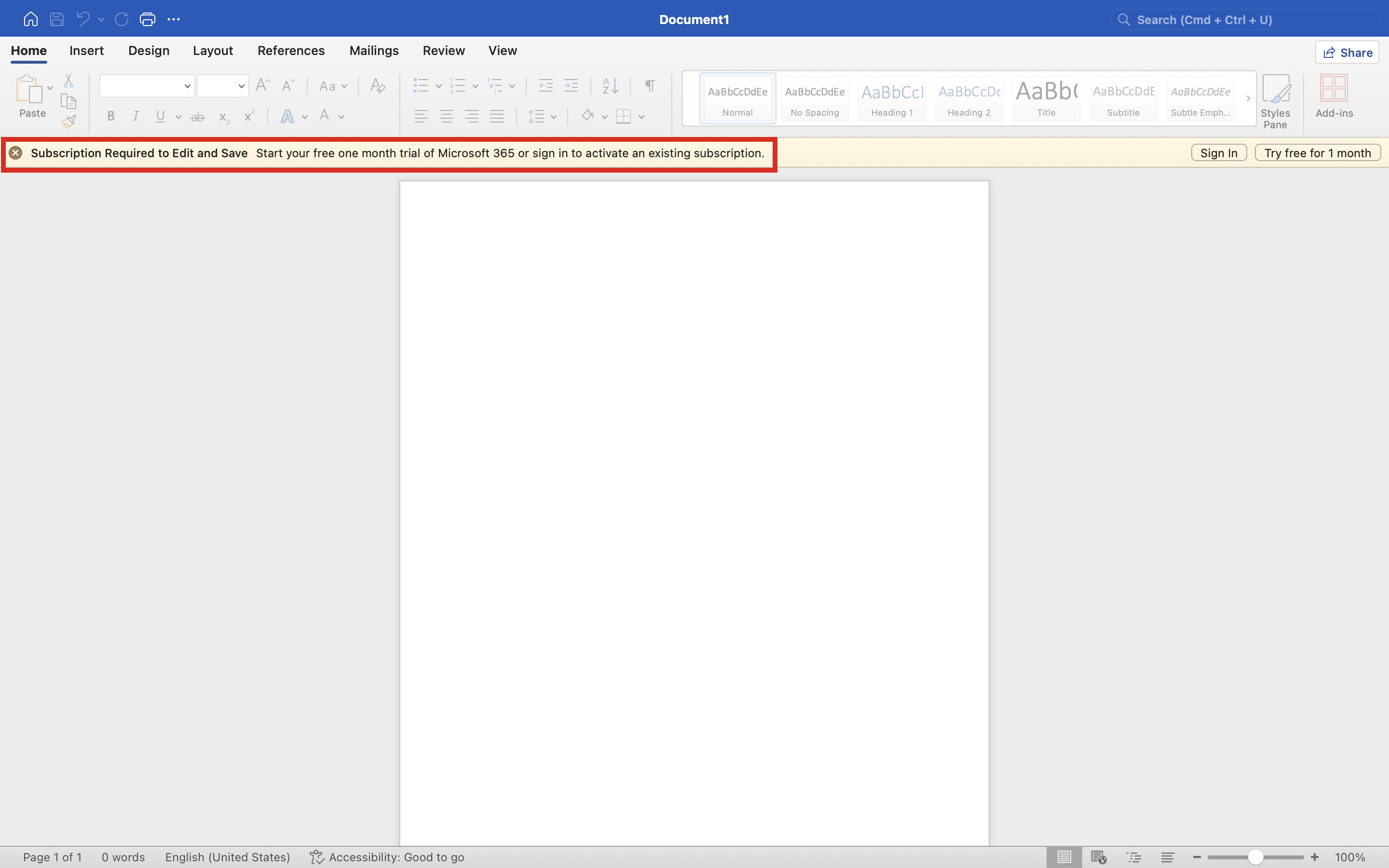
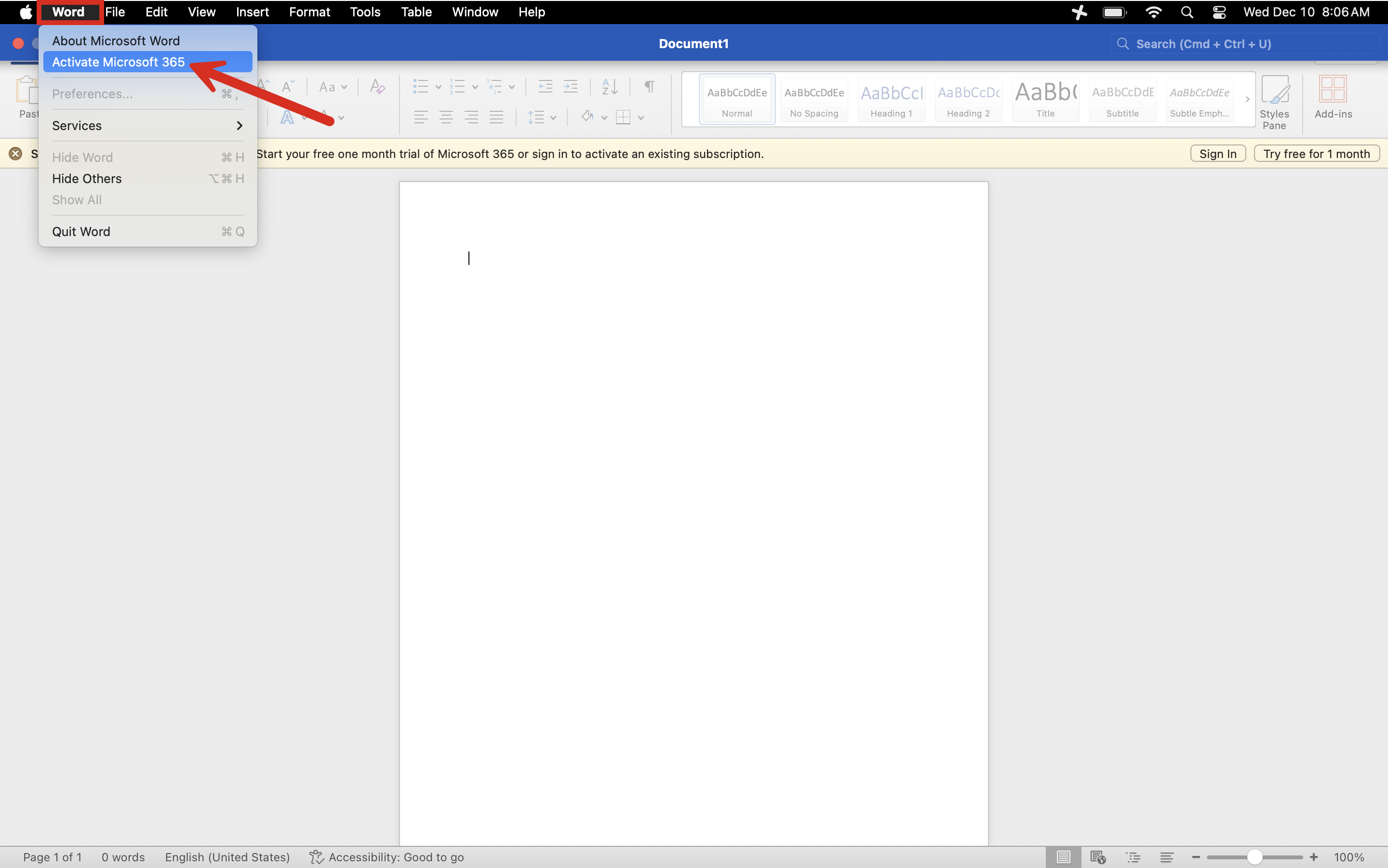
2. Activate Microsoft Account.
- Select Word from the Menu bar, and select Activate Microsoft 365.
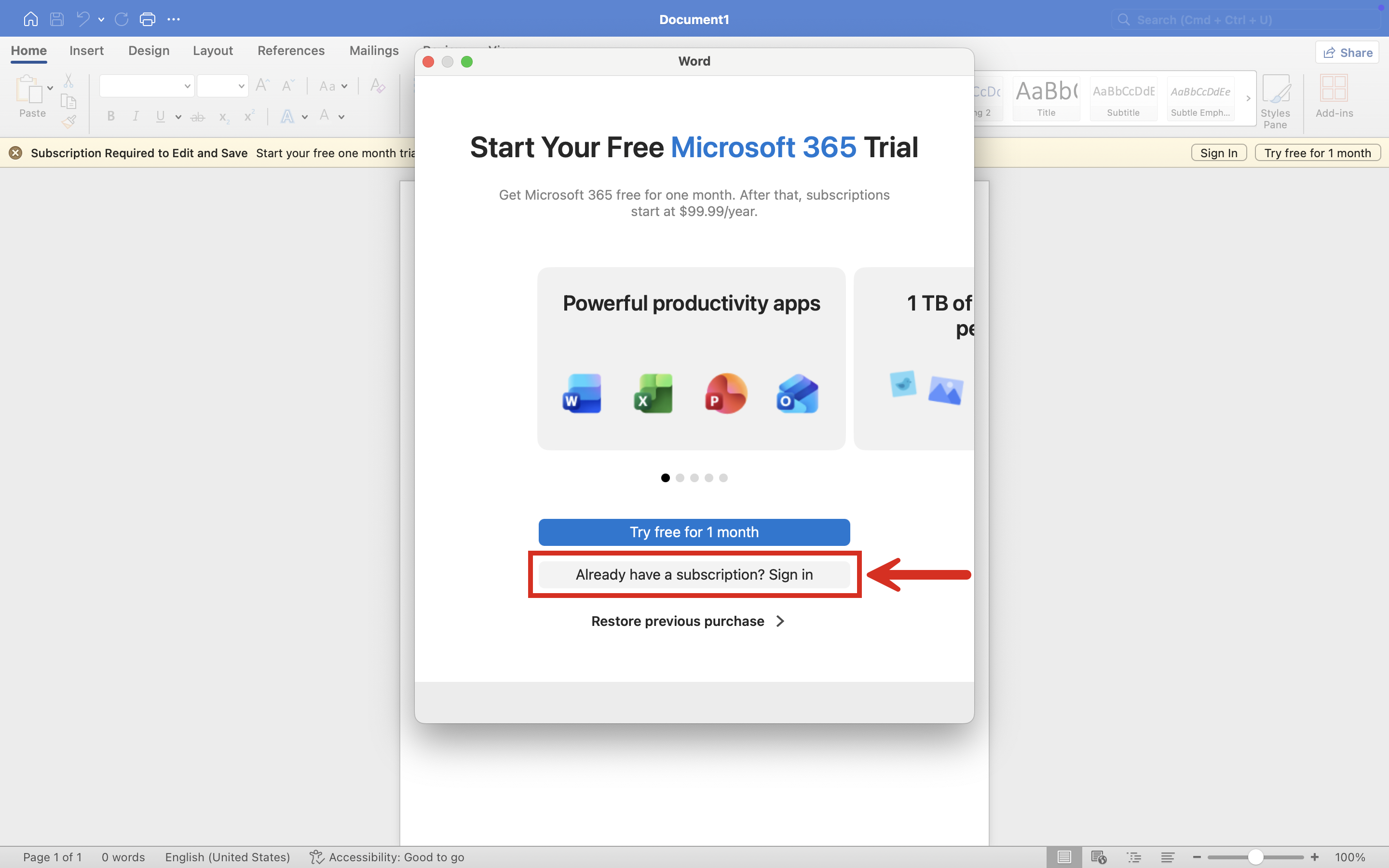
3. Sign In to Your Account.
- Select the option Already have a subscription? Sign In.
- If asked to choose between a Personal or Work/School Account, select Work/School Account.
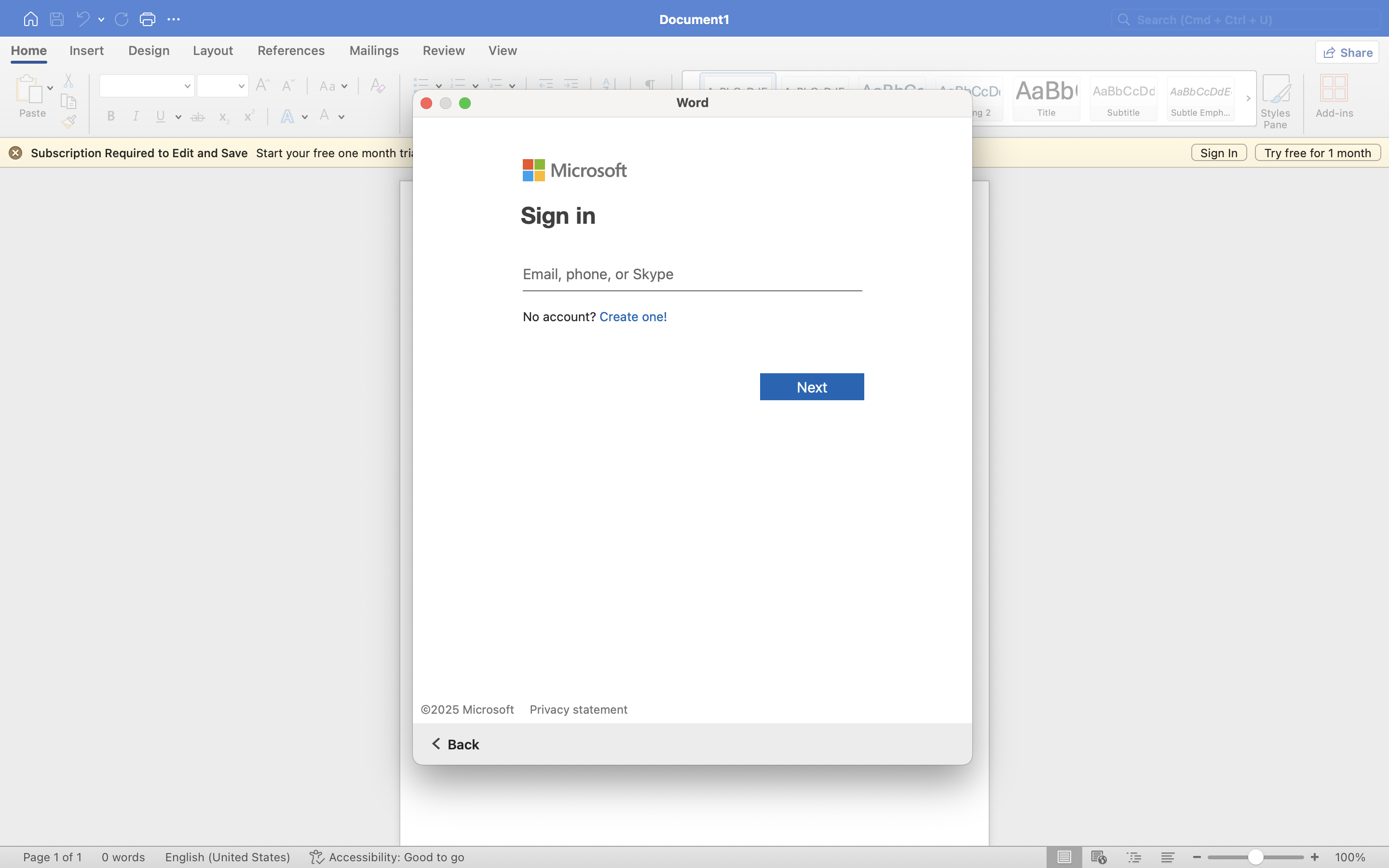
4. Login With Your Kinkaid Email Credentials.
- Type in your school-provided email address (e.g., first.lastname@kinkaid.org).
- Click Next and enter your password.
5. Verify Activation.
- After signing in, Microsoft Word should activate automatically.
- Open a new document and try editing or saving a file to confirm that all features are enabled.
Still having issues? Please email us at helpdesk@kinkaid.org