
Common Reason to Remove Guest WiFi
- Ensure The Best Experience: Removing guest Wi-Fi helps your device prioritize the primary school network for faster access to resources and services.
If you are looking to remove the 'Kinkaid_Guest' Wifi from your Mac, follow the steps below.
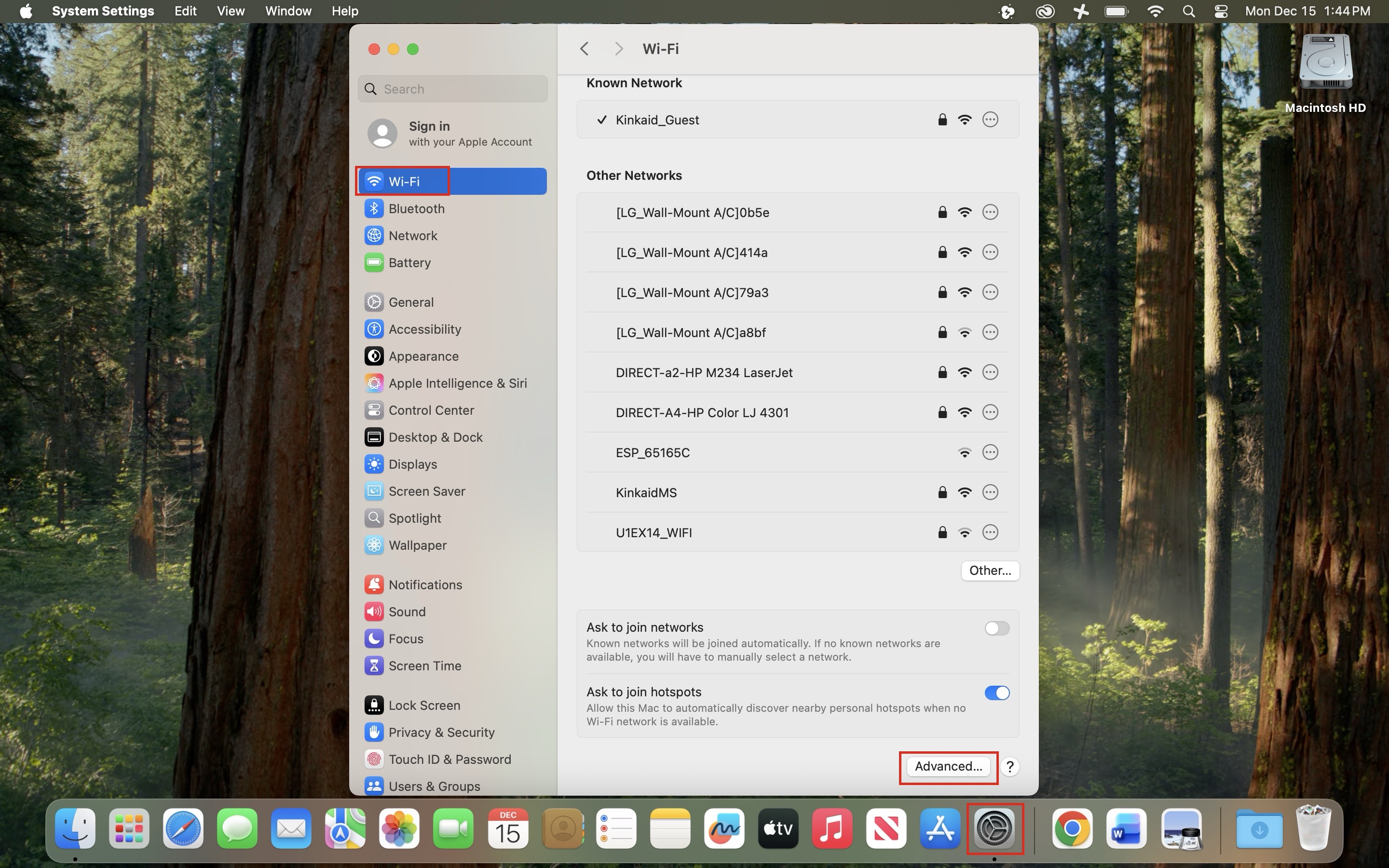
1: Navigate to Settings
- Open System Settings on your Mac, navigate to Wi-Fi, and select Advanced…
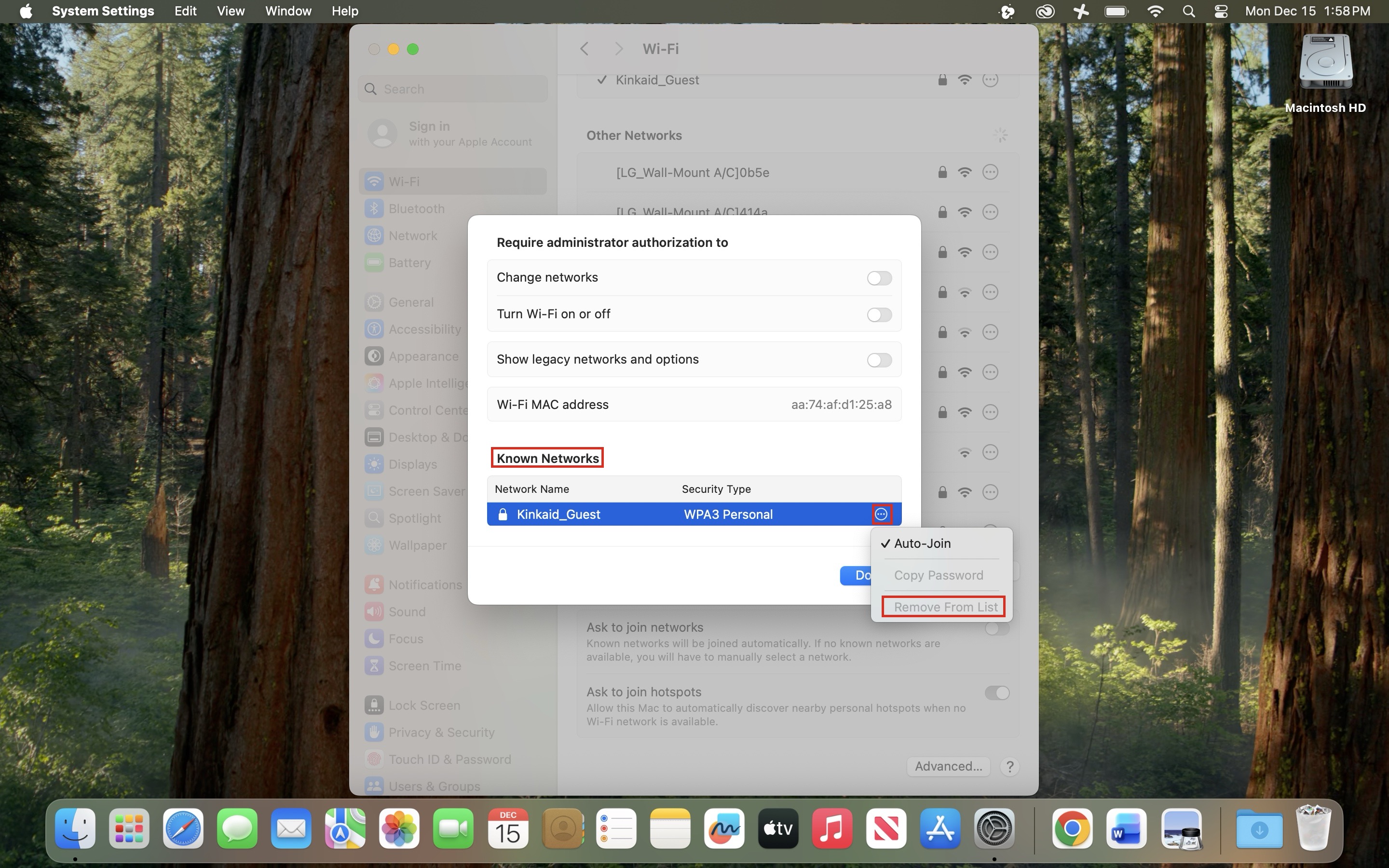
2: Locate Known Networks
- In the Advanced settings, locate Known Networks, select 'Kinkaid_Guest' and choose Remove From List. Confirm by selecting Forget to fully remove the network from your device.
3: Select Done
- After removing the “Kinkaid Guest” network, select Done to save your changes and close System Settings.
Still having issues? Please email us at helpdesk@kinkaid.org