
Common Reasons Your Promethean Board's Touch Is Not Working
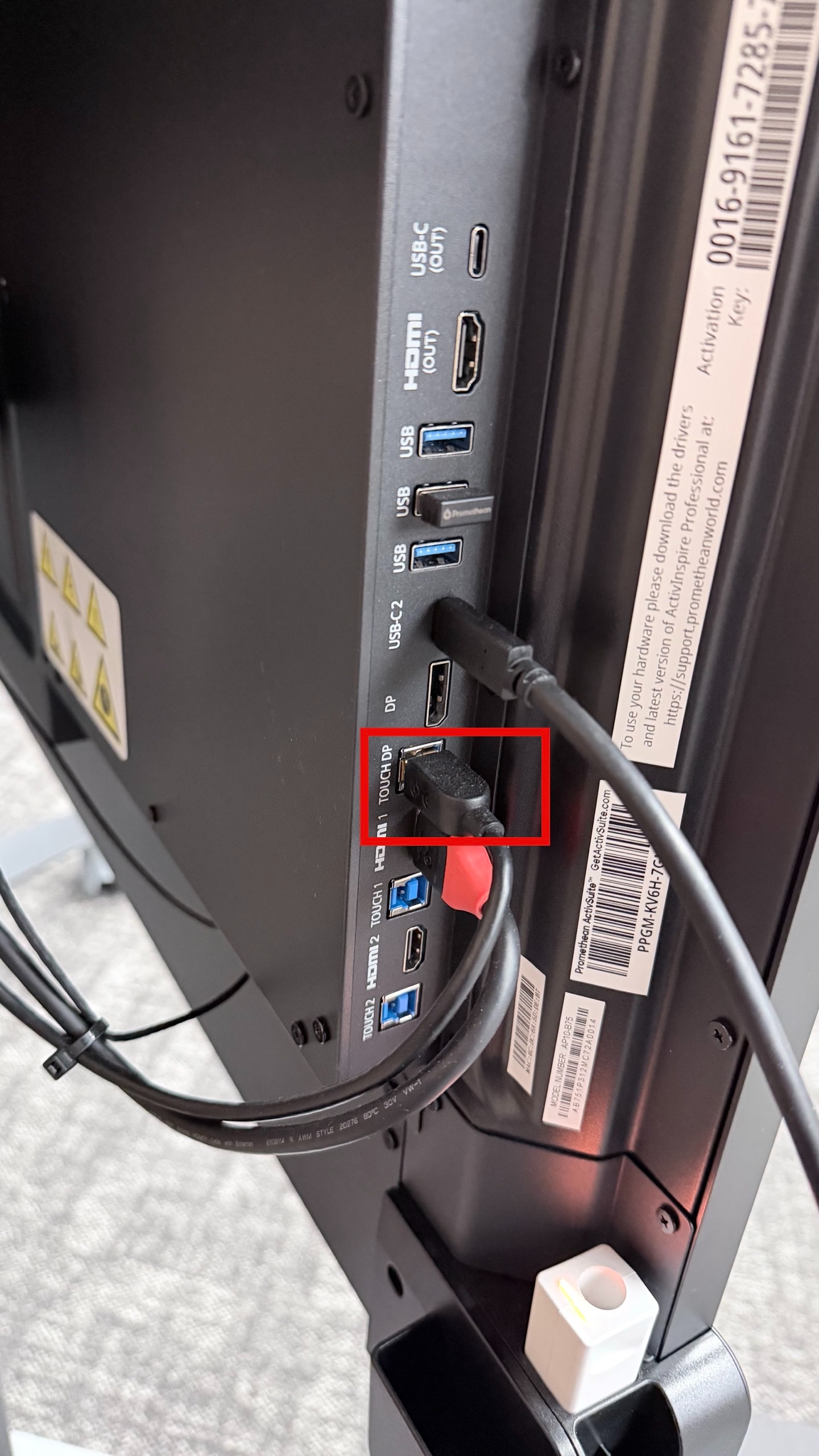
- Reseat the Touch cable: Unplug/Replug the Touch cable back in.
- Reboot device: Turn off the Promethean, unplug the power cable from the wall, wait a minute, and then plug back in and turn on the Promethean.
- Hidden object on board: Ensure there is nothing on the board (piece of tape, decoration, etc).
If your Promethean Board's touch is still not working correctly, follow the steps below.
1. Ensure the Touch cable is plugged in securely to the correct port.
If the Touch Cable is not plugged in, the touch feature will not work.
2. Restart the Promethean Board and the connected device.
Recommended order:
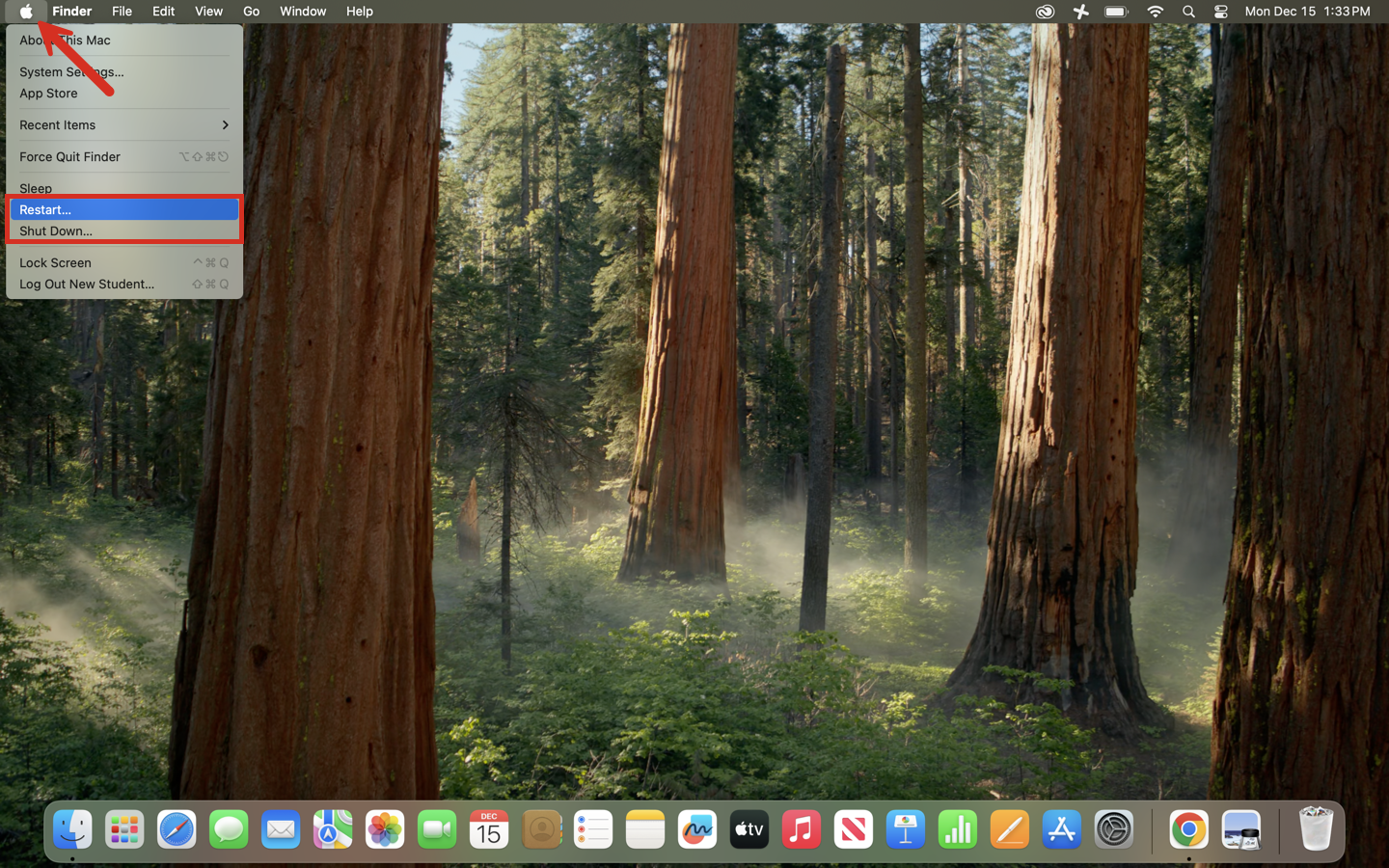
- Close any open work and restart the Mac Mini/MacBook.
- Turn the Promethean Board off.
- Wait 15 seconds.
- Turn the board back on and allow it to fully load.
- Reconnect your Mac Mini/MacBook once the board is on.
Still having issues? Please email us at helpdesk@kinkaid.org