
Common Reasons to Delete Your Cache and Cookies
- Website Not Loading: Old cache can block new content from loading.
- Login Errors: Outdated cookies can interfere with logging in.
- Slow Browsing: Stored temporary files can reduce Chrome’s performance.
If you need help deleting Cache and Cookies, follow the steps below.
1: Open Chrome Settings
On your computer, open Google Chrome.
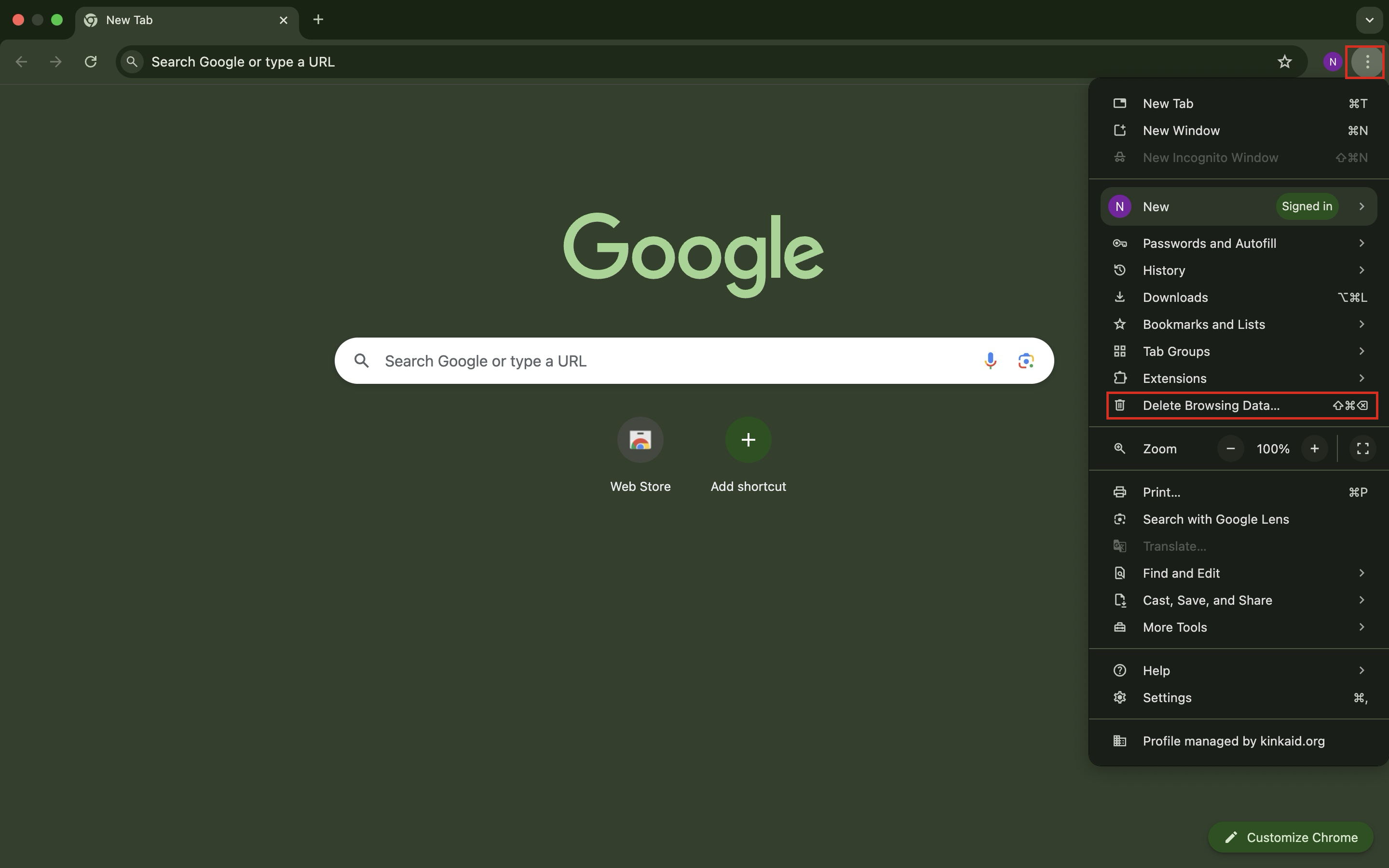
Click the vertical ellipsis (⋮) in the top-right corner.
Click Delete Browsing Data...
2: Choose Time Range and Data to Delete
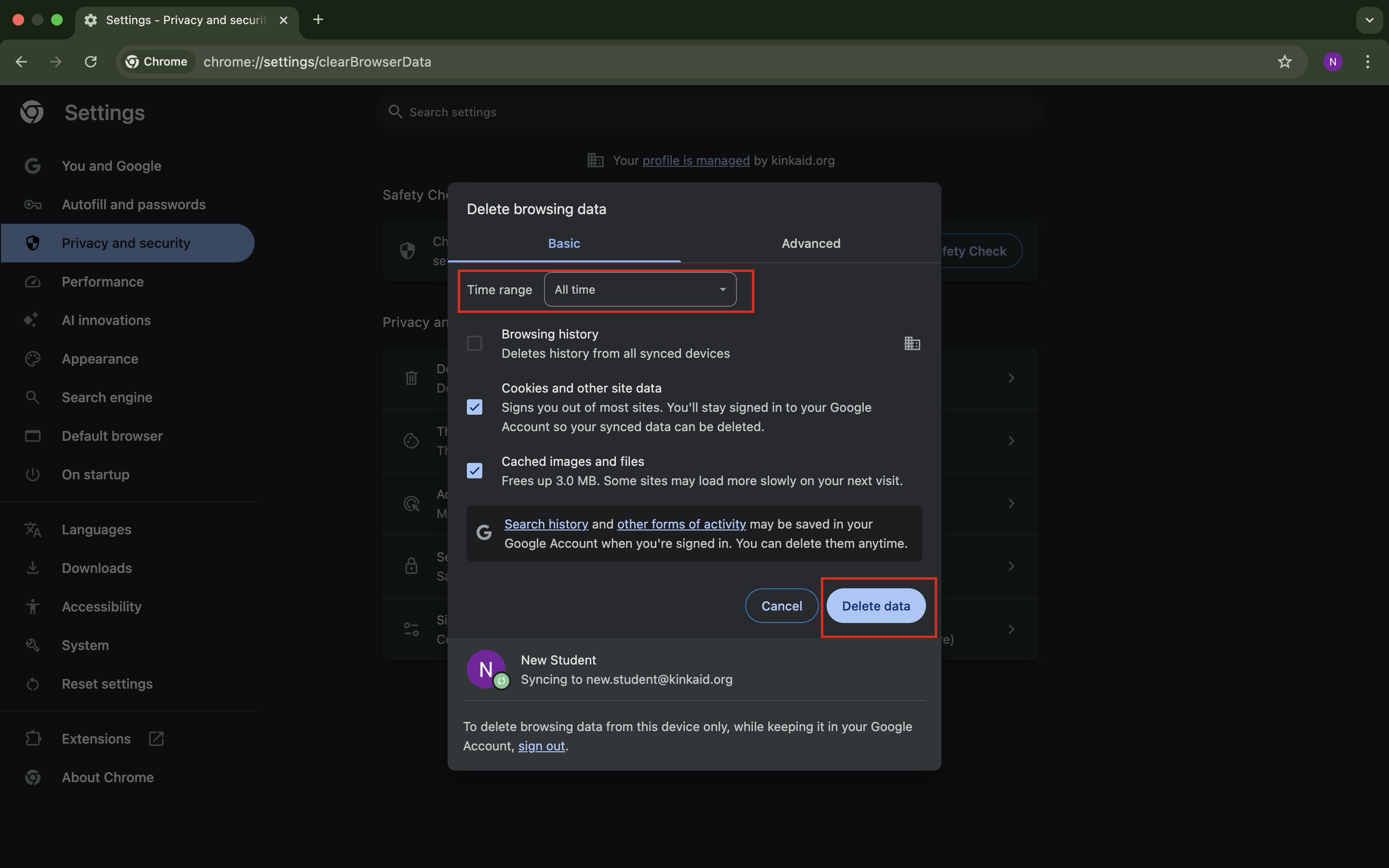
In the window that appears, choose a time range.
Check the boxes next to:
Cookies and other site data
Cached images and files
Click the Delete data button, wait a few moments.
After Clearing Data:
You may be signed out of some websites and will need to log in again.
Pages may load slowly at first as the cache rebuilds.
Still having issues? Please email us at helpdesk@kinkaid.org