
Common Reasons Your Promethean Board Is Displaying Incorrectly
- Board is powered off: Make sure the board is connected to the power outlet and turned on.
- Incorrect input: Select the correct input source.
- Connected device is off/sleep: Ensure the connected device is on and properly connected.
If the Promethean Board is still displaying incorrectly, follow the steps below.
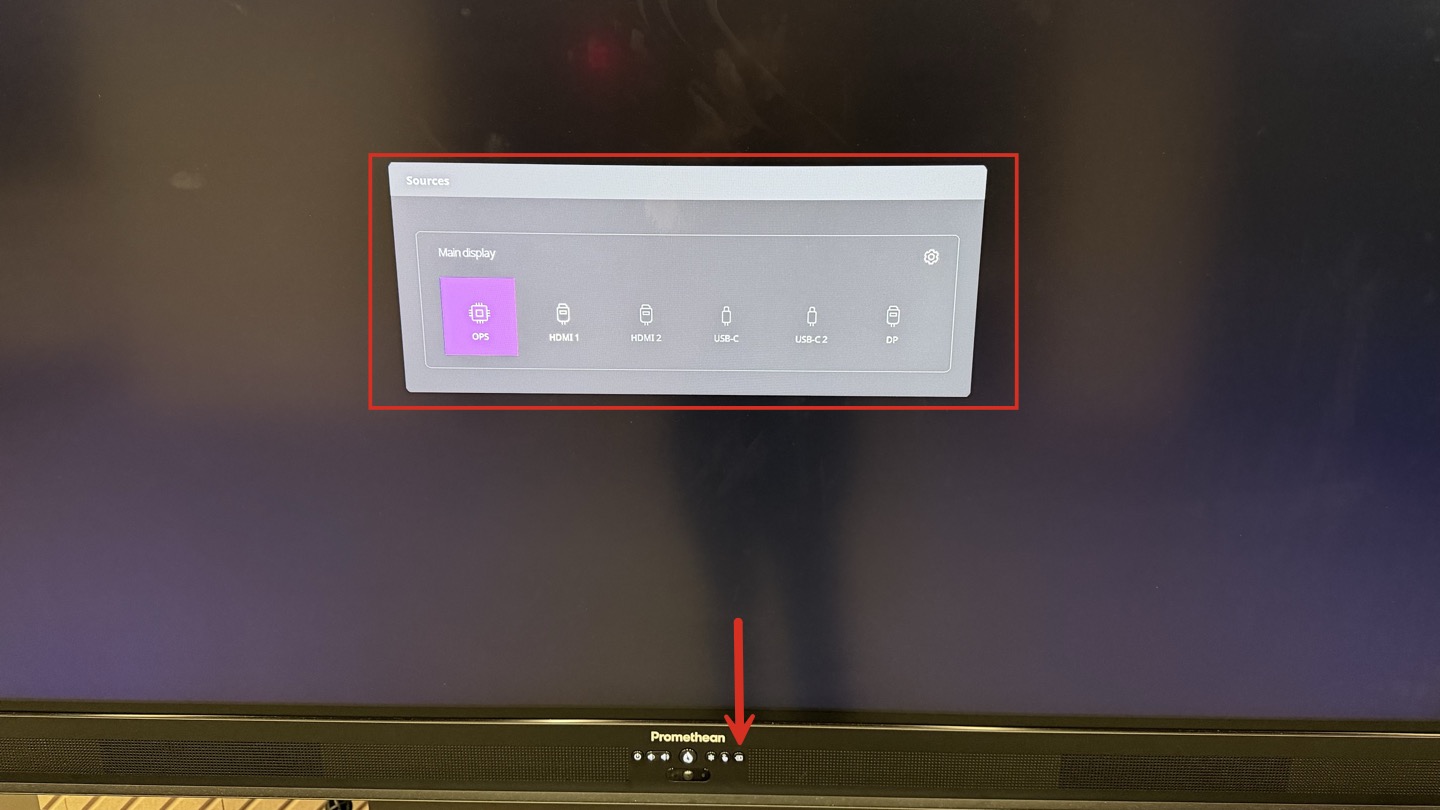
1. Confirm the correct Input Source is selected.
On the Promethean Board, open the Input/Source menu.
Select the input your MacBook is connected to (commonly HDMI 1 or HDMI 2).
Wait 5–10 seconds for the image to refresh.
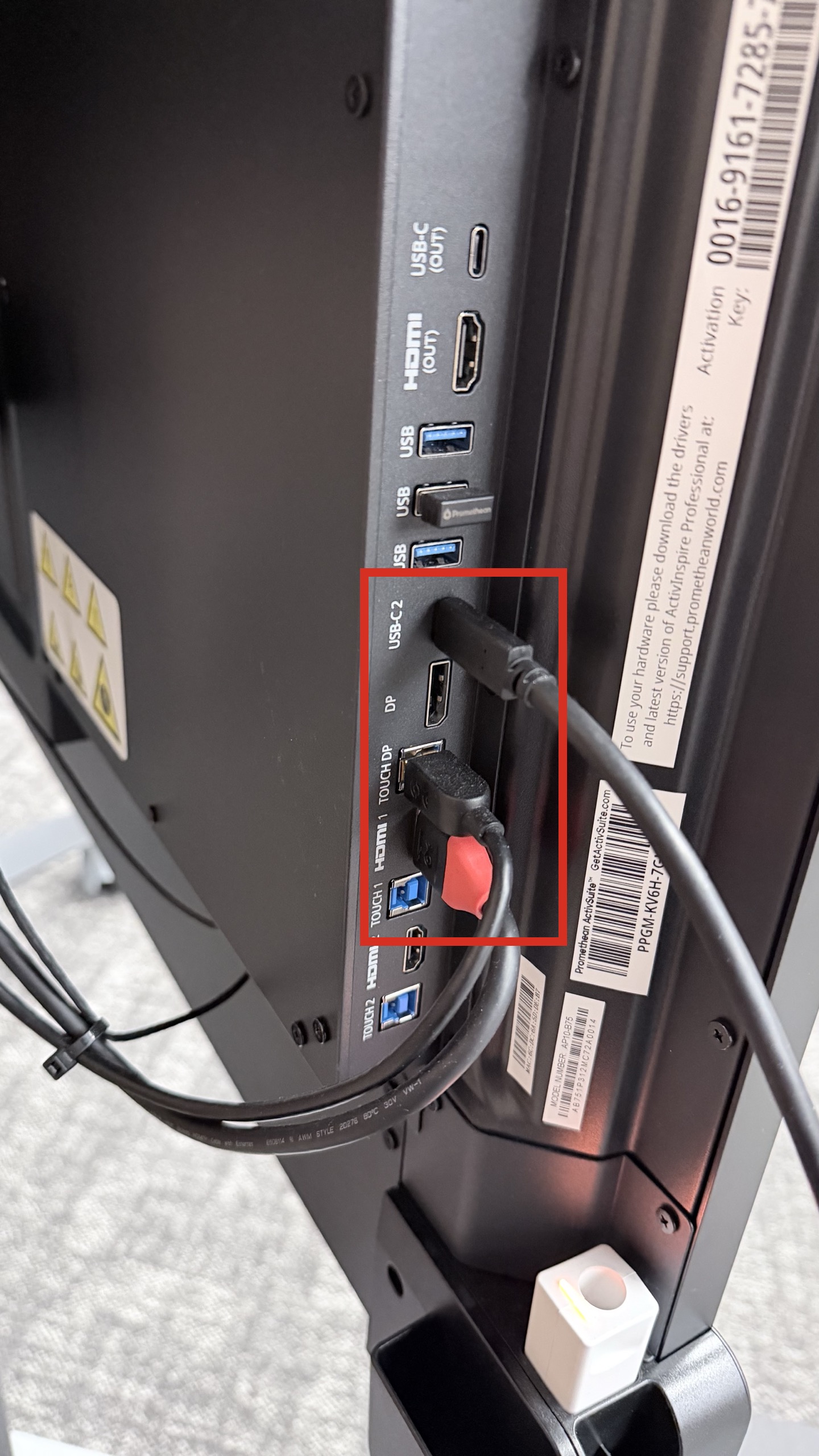
2. Reseat the Video Connection (HDMI or USB-C cable).
Unplug the HDMI/USB-C cable from:
The Promethean Board, and
Your device (if not using the Mac Mini)
Plug the cable back in firmly on both ends.
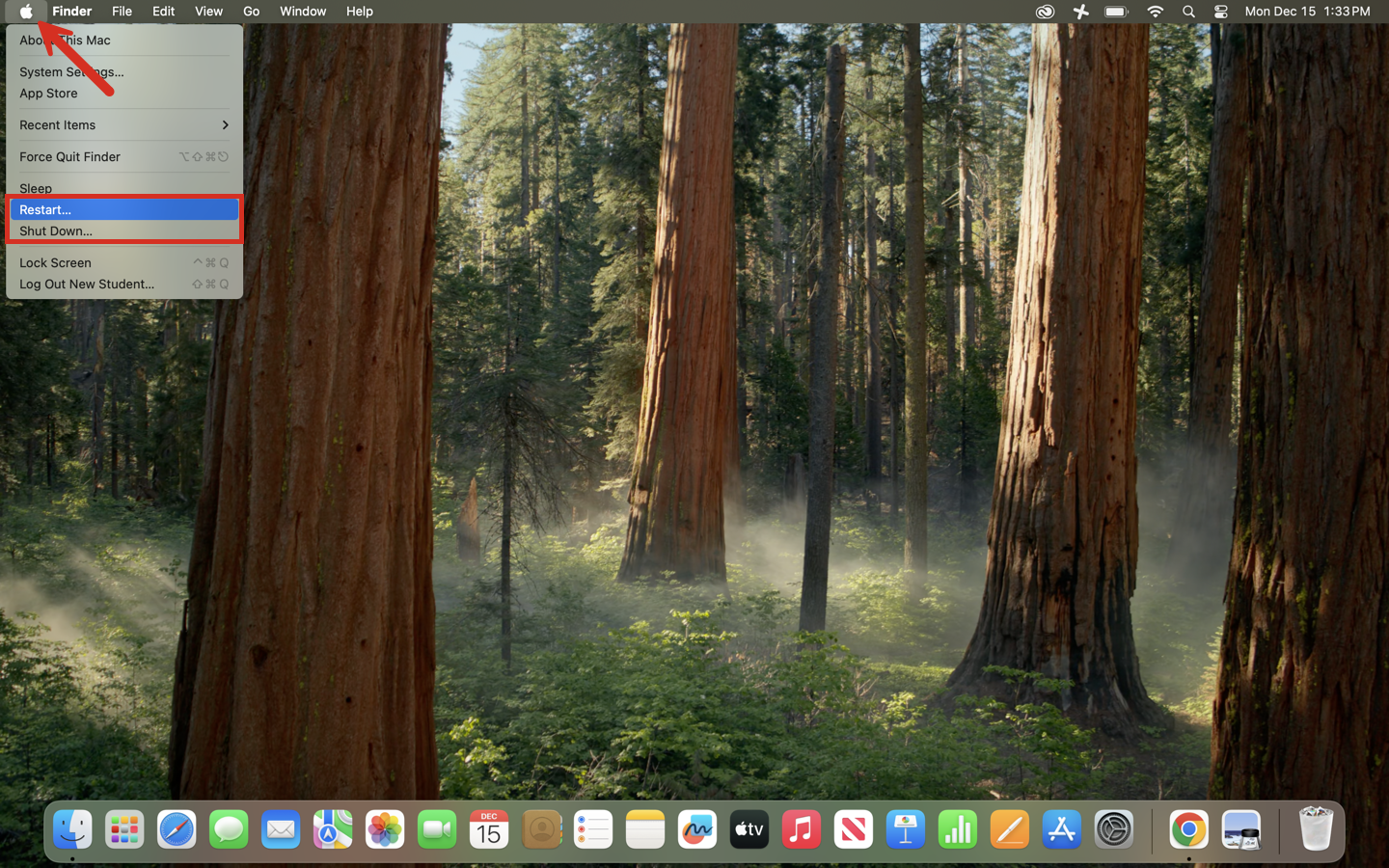
3. Restart the Promethean Board and Your MacBook.
Recommended order:
- Close any open work and restart your MacBook.
- Turn the Promethean Board off.
- Wait 15 seconds.
- Turn the board back on and allow it to fully load.
- Reconnect your MacBook once the board is on.
Still having issues? Please email us at helpdesk@kinkaid.org